How to Run Local AI Agents with LFM2.5-2.6B — A Step-by-Step Guide
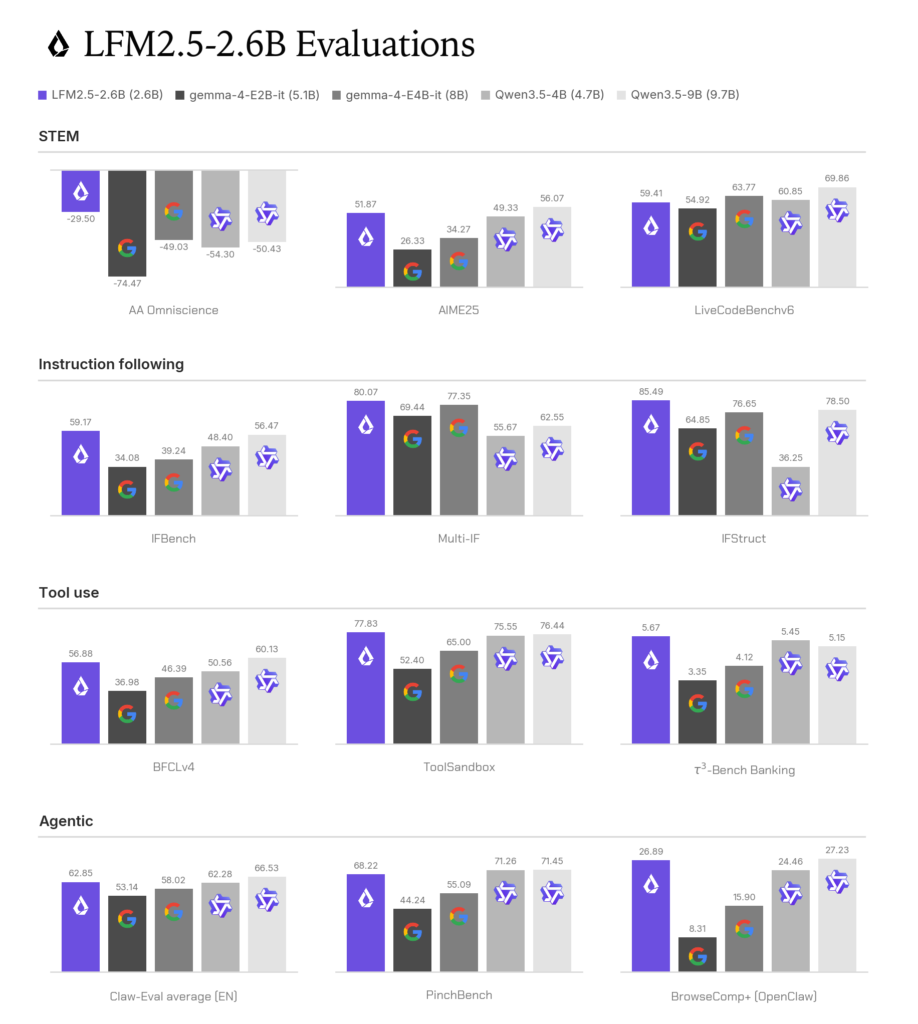
Most AI agents today run on cloud servers, but a new generation of small, efficient models is changing that. Liquid AI recently released LFM2.5-2.6B, a 2.6-billion-parameter model designed specifically for on-device agentic workloads. It supports tool calling, multi-step workflows, and runs on consumer hardware — from laptops to phones. In this tutorial, you will set up a local AI agent using LFM2.5-2.6B, connect it to an agent harness, and run your first automated task entirely offline.
What You Will Build
By the end of this guide, you will have a local AI agent running on your own machine that can browse the web, search for information, and summarize results — all without sending data to a third-party API.
What You Need
Before starting, verify you have these requirements:
- A computer with at least 8 GB of RAM (16 GB recommended for longer agent sessions)
- macOS, Linux, or Windows
- Basic familiarity with the terminal or command prompt
- At least 3 GB of free disk space for the model and tools
The model performs best on systems with a GPU, but it runs on CPU alone at usable speeds. On a recent AMD Ryzen processor, it reaches around 113 tokens per second. Apple Silicon users get even better results, with the M5 Max hitting 220 tokens per second.
Step 1: Install a Local Server Backend
LFM2.5-2.6B is distributed through Hugging Face in several formats. The easiest way to run it is with llama.cpp, which works on all platforms and includes a built-in HTTP server with OpenAI-compatible endpoints.
On macOS, install llama.cpp using Homebrew:
brew install llama.cppOn Windows, use winget:
winget install llama.cppLinux users can download a prebuilt binary or build from source following the llama.cpp documentation.
Step 2: Download and Serve the Model
Once llama.cpp is installed, start the server with the model. The -hf flag automatically downloads the GGUF file from Hugging Face:
llama-server -hf LiquidAI/LFM2.5-2.6B-GGUF:Q4_K_M --jinja --port 8080 -c 131072 -fa on -ngl 99 --temp 0.1 --top-k 50 --repeat-penalty 1.1Let us break down the flags. The –jinja flag enables tool calling support through the model’s template. The -c 131072 sets the context window to 128K tokens, which is important because agent workflows consume context quickly. The -fa on flag enables flash attention for faster inference on compatible GPUs. The -ngl 99 offloads as many layers as possible to the GPU.
The Q4_K_M quantization uses about 1.67 GB of RAM. If you have more memory available, consider Q8_0 (2.87 GB) for better quality, especially for tool-heavy agentic tasks.
The server will output a local URL, typically http://localhost:8080/v1. Keep this running in a terminal window.
Step 3: Connect an Agent Harness
The key insight is that every modern agent harness — Hermes Agent, OpenClaw, Pi, and others — communicates with models through the same OpenAI-compatible API. This means you can point any of them at your local server without special configuration.
For this tutorial, we will use OpenClaw, an open-source agent framework that handles web browsing, code execution, and file operations. Install it with:
pip install openclawThen configure it to use your local model by setting the environment variable:
OPENAI_BASE_URL=http://localhost:8080/v1OpenClaw will now route all agent requests to your local LFM2.5-2.6B instance instead of the OpenAI API.
Step 4: Run Your First Local Agent Task
Start an interactive agent session:
openclawThen give it a task that requires multiple steps. For example:
Research the latest developments in open-source LLMs and summarize the three most important releases from this month.
The agent will plan the task, use its browsing tool to search the web, read pages, and compile a summary. Because LFM2.5-2.6B is optimized for tool use and instruction following, it handles multi-step tasks reliably. The model scores 80.07 on the Multi-IF benchmark and 56.88 on BFCLv4, making it competitive with models four times its size.
Common Problems
If the agent fails to call tools correctly, verify that the –jinja flag was passed when starting the server. Without it, tool calling is disabled.
If you run into context overflow errors, reduce the context window in the server command by changing -c 131072 to -c 32768. Most single-agent tasks need no more than 32K tokens.
If inference is too slow, try the Q4_K_M quantization, which offers the best speed-to-quality ratio. On CPU-only systems, ensure no other memory-intensive applications are running.
Security and Privacy Note
Running models locally means your data never leaves your machine. This is the most privacy-preserving way to use AI agents. However, be aware that agent frameworks can execute code and access files. Only run agents from trusted sources, and review what tools your agent has permission to use. When using web browsing capabilities, the agent will make real network requests from your IP address.
Final Result
You now have a fully local AI agent running on your hardware. Unlike cloud-based agents, there are no usage limits, no API costs, and no data leaving your machine. LFM2.5-2.6B handles instruction following, tool use, and multi-step reasoning well enough for most practical tasks. If you need stronger coding performance, consider pairing it with a larger model for code-specific subtasks, but for general agentic work, this small model punches well above its weight class.